
Disk Quota Exceeded in WordPress: How to Fix It Fast (9 Proven Fixes)
Your site suddenly won't upload images, plugins fail to update, or emails start bouncing. The cause is almost always the same: your hosting account hit its disk quota. Here's exactly how to get your WordPress site working again in the next 15–30 minutes, and how to stop it from coming back.
Quick answer
"Disk quota exceeded" in WordPress means your hosting account has used all the storage (or all the files/inodes) your plan allows, so the server refuses to write anything new. To fix it, delete old backups, huge error_log files, cache folders and email junk first, then clean up post revisions, unused media and old plugins. If you still need more space after that, upgrade your plan or move media to a CDN.
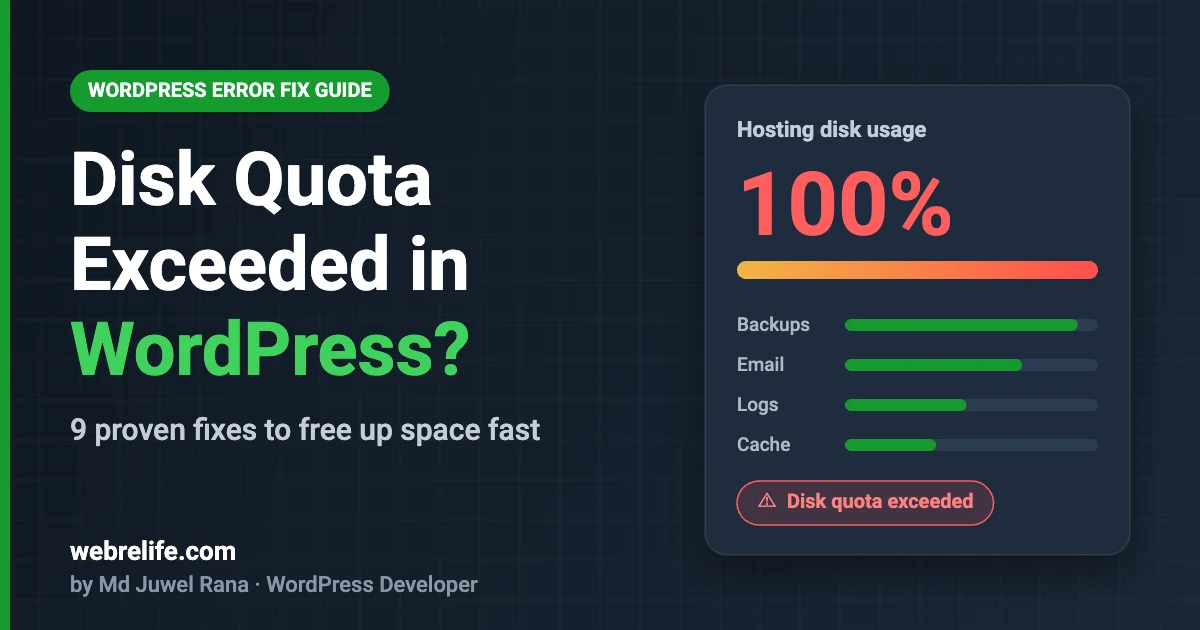
What Does "Disk Quota Exceeded" Mean in WordPress?
Every shared or managed hosting plan gives your account a fixed amount of storage, for example 10 GB, 20 GB or 50 GB. That limit is your disk quota. Many hosts also cap the total number of files and folders, called the inode limit.
When your account reaches either limit, the server blocks new writes. WordPress can still show existing pages for a while, but anything that needs to save a file fails. That's why you see "disk quota exceeded" in WordPress when you upload media, update a plugin, or even log in, because PHP can't write a session or temp file.
It's not a WordPress bug. It's a hosting limit. The good news: in most cases you can fix it yourself without losing any data.
Signs Your WordPress Disk Quota Is Full
WordPress disk space full? The error doesn't always say "disk quota exceeded" in plain words. Watch for any of these messages:
Disk quota exceeded
Could not write file
Unable to create directory wp-content/uploads
Installation failed: Could not copy file
Failed to write session data
Error establishing a database connection
500 Internal Server Error
Uploads fail
Images and PDFs stop uploading to the Media Library, or show a broken "HTTP error".
Updates break
Plugin, theme or core updates fail halfway and may leave the site in maintenance mode.
Emails bounce
Mailboxes on the same hosting stop receiving mail with a "mailbox full" or quota error.
Can't log in
The login page reloads or wp-admin shows a blank screen because sessions can't be saved.
A full disk can corrupt a database table or a half-written file during an update. Fix it as soon as you see the signs.
What's Eating Your WordPress Disk Space?
After cleaning up hundreds of WordPress sites over the last decade, I see the same culprits again and again. Here's where the space usually goes, from worst to least:
| Culprit | Where to find it | Typical impact |
|---|---|---|
| Old backup files (UpdraftPlus, All-in-One WP Migration, Duplicator, host backups) | wp-content/updraft, wp-content/ai1wm-backups, home folder | Very high |
| error_log / debug.log files | Site root, wp-admin, wp-content/debug.log | Very high |
| Email accounts on the same hosting | ~/mail folder | High |
| Image thumbnails and unoptimized uploads | wp-content/uploads | Medium–High |
| Cache folders | wp-content/cache, et-cache, litespeed | Medium |
| Database bloat (revisions, transients, spam, logs) | MySQL database | Medium |
| Inactive plugins & themes, old staging copies | wp-content/plugins, subfolders | Low–Medium |
How to Check Your Disk Usage
Option 1: cPanel Disk Usage tool
Log in to cPanel and open Files → Disk Usage. It lists every folder by size, so you can see in seconds whether the space is in public_html, mail or a backup folder. The cPanel docs explain the tool in detail here.
Option 2: WordPress Site Health
If you can still log in, go to Tools → Site Health → Info → Directories and Sizes. It shows the size of uploads, themes, plugins and the database.
Option 3: SSH (fastest)
If your host gives SSH access, these commands show the biggest folders and files:
Emergency Fix: Disk Full and You Can't Log In to WordPress
If wp-admin won't load, don't panic. You only need to free a few hundred MB to get WordPress breathing again. Use cPanel File Manager (or FTP) and do this:
- Open File Manager and turn on Show Hidden Files in Settings.
- Search for
error_logand delete any that are tens or hundreds of MB. - Open
wp-contentand download, then delete, old backup archives (.zip,.wpress,.tar.gz). - Empty the File Manager .trash folder. Deleted files still count until you do.
- If a
.maintenancefile exists in the site root after a failed update, delete it.
Reload your site. Once you can log in again, continue with the full fixes below.
9 Ways to Fix Disk Quota Exceeded in WordPress
Work through these in order. The first four usually free the most space with the least risk.
-
Delete old backups stored on the server
Backup plugins love to keep every copy on the same server, which defeats the purpose and eats your quota. Download the latest backup to your computer or cloud storage, then delete the rest from
wp-content/updraft,wp-content/ai1wm-backupsor the plugin's folder.Then change the plugin settings to send backups to Google Drive, Dropbox or S3 and keep only 2–3 copies. For a full cleanup checklist, see my guide on how to free up hosting disk space.
-
Delete and limit error_log and debug.log files
A plugin throwing the same PHP warning thousands of times a day can create a multi-GB
error_log. Delete them, then fix the warning that caused them. If you turned on debugging, switch it off inwp-config.php:define( 'WP_DEBUG', false ); define( 'WP_DEBUG_LOG', false );Find all large log files over SSH with:
find ~ -name "error_log" -size +10M -exec ls -lh {} \; -
Clean up email accounts on the same hosting
Mailboxes share the same disk quota as your website. Years of attachments can easily take several GB. In cPanel, go to Email Accounts, sort by usage, and empty Trash, Spam and old Sent folders. Set a per-mailbox quota so one inbox can't fill the whole account.
-
Clear cache folders
Page cache and minified files rebuild themselves, so they are safe to clear. Use your cache plugin's Purge All button (WP Rocket, LiteSpeed Cache, W3 Total Cache), or delete the contents of
wp-content/cache. Divi users should also clearwp-content/et-cache. -
Optimize and resize your images
Phone photos uploaded at 4–8 MB each add up fast, and WordPress creates several extra thumbnail sizes for every upload. Compress existing images and convert them to WebP with a plugin like ShortPixel, Imagify or EWWW. Then stop unused thumbnail sizes from being generated and remove the old ones with a regenerate-thumbnails tool.
-
Remove unused media files
Media from deleted posts, old page builder layouts and test uploads stay in the library forever. Use a tool like Media Cleaner to find unattached files, but take a full backup first and review the list by hand. Some files used in CSS, sliders or builders can show as "unused".
-
Clean the database
Post revisions, expired transients, spam comments and plugin logs can push a database into the GBs (here's my step-by-step guide to reduce WordPress database size). WP-Optimize or Advanced Database Cleaner can clean it safely. With WP-CLI you can do it in seconds:
# Delete all post revisions wp post delete $(wp post list --post_type='revision' --format=ids) --force # Delete all transients wp transient delete --all # Optimize tables wp db optimizeThen limit future revisions in
wp-config.php(see the official wp-config documentation):define( 'WP_POST_REVISIONS', 5 ); -
Delete inactive plugins, themes and old staging sites
Deactivated plugins still take space and can be a security risk. Delete anything you don't use, keep one default theme as a fallback, and remove old copies of the site such as
/old,/stagingor/backup-sitefolders. -
Upgrade your plan or offload media
If your site is clean and still close to the limit, it has simply outgrown the plan. You have two choices: upgrade the hosting storage, or move uploads to object storage (Amazon S3, Cloudflare R2, Bunny Storage) with an offload plugin. Offloading keeps the server small and usually makes the site faster too.
For a deeper walk-through on shrinking a heavy site, read my guide on how to reduce WordPress website size.
Inode Limit vs Disk Space: Which One Did You Hit?
Some hosts show "disk quota exceeded" even when you still have GBs free. That usually means you hit the inode limit, the maximum number of files and folders.
💾 Disk space limit
- Measured in MB / GB
- Caused by big files: backups, logs, videos
- Fix: delete large files, compress images
🗂 Inode limit
- Measured in number of files
- Caused by many small files: cache, sessions, thumbnails, mail
- Fix: clear cache, old sessions, extra thumbnails
Check your inode count in the cPanel sidebar under Statistics, or count files per folder over SSH:
Mistakes That Can Break Your Site
- Delete files inside
wp-adminorwp-includes. Those are WordPress core. - Delete the whole
uploadsfolder or random year folders to "save space". - Run a database cleaner or media cleaner without a fresh backup stored off the server.
- Delete your only backup before you've downloaded a copy.
- Leave
WP_DEBUG_LOGon for weeks on a live site.
How to Stop Disk Quota Exceeded From Coming Back
- Store backups off-site and keep only the last 2–3 copies.
- Limit post revisions to 3–5 in
wp-config.php. - Compress images on upload and serve WebP.
- Set mailbox quotas, or move business email to a separate service.
- Fix PHP warnings instead of letting logs grow.
- Turn on your host's disk usage alerts at 80%.
- Check cPanel Disk Usage once a month. It takes two minutes.
Frequently Asked Questions
What does disk quota exceeded mean in WordPress?
It means your hosting account has used all the storage or file count (inodes) your plan allows. The server then refuses to write new files, so uploads, updates and sometimes logins fail.
Will my website go down if the disk quota is exceeded?
Often the front end keeps loading from existing files, but forms, uploads, updates, logins and emails can break. A full disk can also corrupt the database during writes, so fix it quickly.
Is it safe to delete error_log files?
Yes. They're plain text logs and WordPress doesn't need them to run. Just fix the underlying PHP errors, or the logs will grow back.
Why do I get disk quota exceeded when I still have free space?
You've most likely hit the inode limit, which caps the number of files. Clearing cache folders, old sessions, extra thumbnails and email can bring the count down.
How much storage does a WordPress site need?
A typical small business site runs fine in 1–5 GB. WooCommerce stores and media-heavy blogs often need 10–50 GB. If backups and email live on the same account, add space for them too.
Can I fix disk quota exceeded without cPanel?
Yes. Use FTP/SFTP with FileZilla to delete backups and logs, or SSH if your host allows it. On Plesk or DirectAdmin, the File Manager works the same way.
Still Seeing "Disk Quota Exceeded"? Let Me Fix It for You.
I'll find what's filling your hosting, clean it safely with a full backup first, and set things up so it doesn't happen again. Most sites are fixed within 24 hours.
Fix My WordPress Site Read the Size Reduction Guide