
WooCommerce New Order Emails Not Sending? How to Find the Break and Fix It
Customers are ordering, but your inbox stays quiet. No “[Your Store]: New order” email, no alert, nothing. Here’s how to find exactly where the email stops, and how to make sure every order reaches you.
Somewhere on this trip, your order email gets stuck.
Why Are My WooCommerce New Order Emails Not Sending?
Quick answer: WooCommerce new order emails not sending is usually caused by one of four things: the order never reaches “Processing” (it’s stuck in Pending Payment), the New order email is disabled or has no recipient, your server’s default PHP mail is blocked or untrusted, or the email is delivered but filtered as spam. Check WooCommerce’s email log first, then switch to SMTP.
Tested against WooCommerce’s official email troubleshooting guide, November 2026.
- WooCommerce sends the New order email when an order moves to Processing (or On hold). Pending Payment orders send nothing.
- WooCommerce → Status → Logs → transactional-emails tells you if an email was Sent, Failed, Disabled or Skipped.
- “Sent” in the log only means WordPress handed it off. It can still be dropped or land in spam.
- The lasting fix is an SMTP service plus SPF, DKIM and DMARC on your domain.
Missing a new order email isn’t just annoying. If you ship by hand, run a restaurant or bakery, or sell made-to-order products, that email is your order system. When WooCommerce new order emails are not sending, orders sit there until a customer emails asking where their stuff is.
I’m Md Juwel Rana. I build and fix WooCommerce stores and set up SMTP and email delivery for clients at Web Relife. Email deliverability is a big part of my work, and this is the exact order I troubleshoot WooCommerce new order emails not sending.
What Is the WooCommerce New Order Email?
The New order email is the notification WooCommerce sends to the store owner (not the customer) when a new order comes in. You’ll find it under WooCommerce → Settings → Emails → New order, where you can turn it on or off, set the recipient address, and change the subject.
It’s separate from the customer emails like “Processing order” and “Completed order.” So it’s possible for customers to get their confirmation while you get nothing, or the other way around.
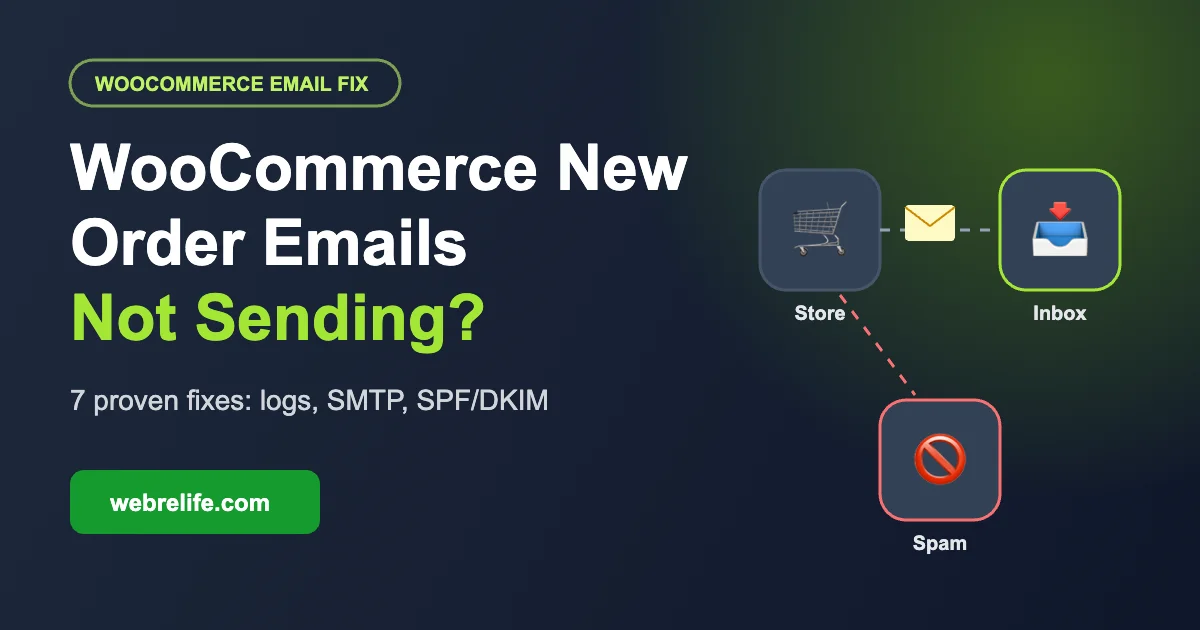
Where Do WooCommerce New Order Emails Get Stuck?
Every new order email makes the same trip. When WooCommerce new order emails are not sending, it’s broken at one of these six stops:
Your job is to find which stop fails. The email log tells you most of it.
How Do I Check If WooCommerce Sent the Email?
WooCommerce logs every transactional email attempt. According to WooCommerce’s official email troubleshooting guide, you can find it at WooCommerce → Status → Logs, source transactional-emails. Each attempt gets one of four results. Click to see what each one means:
WordPress handed the email to your mail system. If you still didn’t get it, the problem is delivery: your server’s mail, SPF/DKIM, or a spam filter. Go to Fix 4 and Fix 6.
WordPress tried and the mail system refused. Your host’s PHP mail is broken or blocked. Set up SMTP (Fix 4).
The email type is switched off. Turn it on in WooCommerce → Settings → Emails → New order (Fix 2).
A required condition is missing, usually the recipient address. Add your email in the New order settings (Fix 2).
WooCommerce never tried to send it. Usually the order is stuck in Pending Payment (Fix 1), or logging is turned off in WooCommerce → Status → Logs → Settings.
Sent and Failed attempts also show up as private notes on the order itself.
Missing orders because emails don’t arrive? I can fix it today.
Get Help NowHow to Fix WooCommerce New Order Emails Not Sending: 7 Steps
Work through these in order. Each step rules out one stop on the email’s trip.
Check the order status first
Open WooCommerce → Orders and look at the orders you didn’t get emails for. If they say Pending payment, that’s your answer, and it’s one of the most common reasons behind WooCommerce new order emails not sending. WooCommerce only sends the New order email once an order moves to Processing (or On hold for methods like bank transfer). Abandoned PayPal checkouts and declined cards stay Pending, and that’s normal.
If the customer did pay but the order is still Pending, the payment gateway isn’t reporting back. Check the gateway’s webhook or IPN settings. That’s a payment problem, not an email problem.
Make sure the New order email is on and has a recipient
- Go to WooCommerce → Settings → Emails and click New order.
- Tick Enable this email notification.
- Check the Recipient(s) field. Separate multiple addresses with commas. A typo here is surprisingly common.
- Save, then place a test order.
Use a From address on your own domain
In the same Emails settings, look at “From” address. If it’s [email protected] or @yahoo.com, many servers will reject or junk it, because your website isn’t allowed to send as Gmail. WooCommerce itself recommends an address on your own domain, like [email protected].
Switch from PHP mail to SMTP
This is the fix that solves most WooCommerce new order emails not sending cases for good. By default, WordPress sends email through your server’s PHP mail function. Many hosts limit or block it, and mailbox providers don’t trust it because it usually isn’t authenticated.
- Pick a sending service: your domain’s email provider (Google Workspace, Microsoft 365, Zoho) or a transactional service like Brevo, Mailgun, Postmark or Amazon SES.
- Install an SMTP plugin such as WP Mail SMTP or FluentSMTP.
- Enter the SMTP or API details from your provider.
- Send a test email from the plugin, then place a real test order.
Rule out plugin and theme conflicts
A plugin or custom code can stop the order status from changing or interrupt the email. WooCommerce recommends testing with other plugins off and a default theme active. Do this on a staging copy if your store is busy. Also check WooCommerce → Status → Logs for fatal-errors around the order time.
Set up SPF, DKIM and DMARC
If the log says Sent but nothing arrives, the email is probably being filtered. Add the SPF and DKIM records your sending service gives you to your domain’s DNS, plus a basic DMARC record. More on this below.
Check your own inbox rules
Search your spam and promotions folders for “New order.” Check you don’t have a filter archiving or deleting messages from your own domain. If you use Gmail with a custom domain, also check Gmail’s “Blocked addresses” list.
PHP Mail vs SMTP: Which Should WooCommerce Use?
Short version: SMTP, every time. Here’s why WooCommerce new order emails not sending is so common on default setups:
| Default PHP mail | SMTP / email API | |
|---|---|---|
| Setup | Nothing to set up | 10–20 minutes with a plugin |
| Authentication (SPF/DKIM) | Often missing or misaligned | Built in when DNS is set up |
| Host limits | Often limited or blocked | Set by your provider, usually generous |
| Delivery to Gmail/Outlook | Unreliable, often spam | Much more reliable |
| Logs and bounce info | Little or none | Full delivery logs |
| Best for | Testing only | Any real store |
How Do I Stop WooCommerce Order Emails Going to Spam?
Sometimes WooCommerce new order emails are not sending to your inbox simply because they’re landing in spam. Mailbox providers got a lot stricter in 2024. Starting February 2024, Gmail and Yahoo began enforcing new rules for bulk senders (more than 5,000 messages a day), and called them best practice for everyone:
p=none is enough to start), and a spam complaint rate below 0.3%.
Summary of the Gmail and Yahoo sender requirements, as explained by AWS
A small store won’t hit 5,000 emails a day, but the same checks decide whether your order emails land in the inbox. Set up all three:
- SPF: one TXT record listing who can send for your domain. Only one SPF record per domain, merge them if you have two.
- DKIM: a signing key from your SMTP provider, added as a DNS record.
- DMARC: start with
v=DMARC1; p=none; rua=mailto:[email protected]to collect reports.
Want Me to Fix Your Order Emails?
Email delivery is one of my specialties. If WooCommerce new order emails are not sending and you’d rather not touch DNS or SMTP settings, send me your store details. I’ll find the break and set up email that reliably lands in the inbox.
- Diagnose the exact cause using WooCommerce and server logs
- Set up SMTP with a trusted sending service
- Configure SPF, DKIM and DMARC correctly
- Fix payment gateway status issues that block emails
- Test admin and customer emails end to end