
WordPress Login Not Working After URL Change? How to Get Back In Fast
You changed the WordPress Address or Site Address, clicked Save, and got kicked out. Now the login page loops, errors or won’t load at all. Don’t panic. Your site is fine. WordPress is just looking at the wrong address.
It’s one of the easiest ways to lock yourself out of WordPress. One wrong letter in Settings → General, or switching to https before your SSL certificate is ready, and the dashboard disappears.
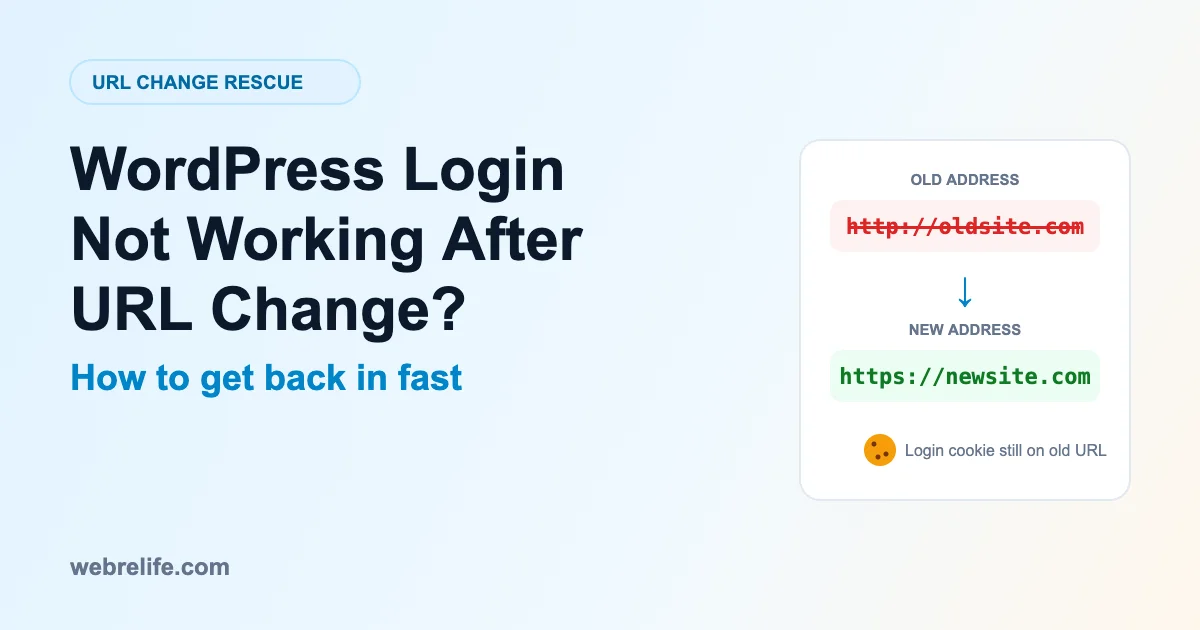
When the WordPress login not working after URL change problem hits, nothing has been deleted. WordPress stores your site address in the database and uses it for every redirect and every login cookie. Change it to something that doesn’t work, and WordPress keeps sending you there.
I’m Md Juwel Rana, a WordPress developer at Web Relife. I move and rebuild WordPress sites regularly, and this is the order I use to get back in. All you need is access to your hosting account.
Why Is My WordPress Login Not Working After URL Change?
Short answer: WordPress now thinks your site lives at the new address. If that address has a typo, doesn’t point to your server yet, has no SSL certificate, or doesn’t match where you’re actually logging in, the login cookie is set for one address and you’re sent to another. The fix is to set the right URL from outside the dashboard.
The usual suspects behind a WordPress login not working after URL change:
- A typo in the WordPress Address or Site Address.
- https without a working SSL certificate, which causes browser errors or redirect loops.
- www vs non-www mismatch between the two fields, or between WordPress and your server.
- A new domain that isn’t pointing at your hosting yet.
- Old cookies and cache still tied to the old address.
- A custom login URL from a security plugin that now points to the wrong domain.
What Kind of URL Change Did You Make?
Tap the one that matches. You’ll get the shortest path to fixing your WordPress login not working after URL change.
- Put the correct URL back with Fix 1 (wp-config.php) or Fix 2 (phpMyAdmin).
- Clear cookies (Fix 5) and log in.
- Fix the URL in Settings → General, then remove the wp-config lines if you want the fields editable again.
- Make sure the new domain points to your server (DNS) before anything else.
- Set the new URL with Fix 1 or Fix 4 (RELOCATE).
- Update every old link with a proper search-replace: see this section.
Locked out after changing your URL? I can fix it quickly.
Get Help NowHow to Fix WordPress Login Not Working After URL Change: 8 Fixes
Take a backup of your files and database from your hosting panel first. Then start with Fix 1. Most people with WordPress login not working after URL change are back in after the first two.
Set the URL in wp-config.php
Open File Manager in your hosting panel, edit wp-config.php in the site’s root folder, and add these lines above /* That's all, stop editing! */:
Use the address that actually works right now. If SSL isn’t ready, use http://. No trailing slash. These values override whatever’s saved in the database, which is exactly why this works when the dashboard doesn’t.
The catch: while these lines are there, the two fields in Settings → General are greyed out. That’s normal. Remove the lines later if you want to edit them from the dashboard again.
Fix siteurl and home in phpMyAdmin
Open phpMyAdmin, choose your WordPress database, and open the wp_options table (your prefix may differ). The first rows are usually siteurl and home. Edit both option_value fields to the correct address. Or run:
Unlike Fix 1, this changes the saved value, so Settings → General stays editable. For a lasting fix to WordPress login not working after URL change, this is the method I prefer.
Use functions.php (no database access)
The official WordPress guide describes this method too. Add these lines right after the opening <?php in your active theme’s functions.php:
Load the login page a couple of times, log in, then remove both lines. Don’t leave them in the file.
Use the RELOCATE trick after a move
If you moved hosts and now have WordPress login not working after URL change, WordPress has a built-in “relocate” mode for exactly that. Add this to wp-config.php above the “stop editing” line:
Then open https://yourdomain.com/wp-login.php on the new address and log in. WordPress updates the site URL to whatever address you used to reach the login screen. Check Settings → General, save, then delete the RELOCATE line. WordPress’s own documentation warns that leaving it in can let an attacker change your site URL.
Clear cookies and cache
Your browser may still hold login cookies for the old address. Clear cookies for both the old and new domain, or just use a private window. Also purge any cache plugin, server cache or Cloudflare cache. A cached login page can keep sending you to the old URL even after it’s fixed. This step alone clears up many WordPress login not working after URL change cases.
Make sure SSL works before using https
A missing certificate is a big cause of WordPress login not working after URL change. Open https://yourdomain.com in a private window. If you see a privacy warning, the certificate isn’t installed or doesn’t cover that exact name (www and non-www both need covering). Install a free certificate from your hosting panel first. Until then, keep the URL on http://.
Once SSL works, have only one thing force https. If a plugin, .htaccess and Cloudflare all try to redirect at the same time, you’ll get “too many redirects.”
Check .htaccess for subfolder moves
If you moved WordPress into or out of a subfolder (for example from /blog to the root), the RewriteBase and final rule in .htaccess may still point to the old path. Back up the file and make sure it matches the new location. For a root install, it’s RewriteBase / and RewriteRule . /index.php [L].
Check your custom login URL
If a plugin changed your login address (to something like /my-login), /wp-login.php may show a 404 or redirect to the homepage. Use your custom login path on the new domain. If you’ve forgotten it, rename that plugin’s folder in wp-content/plugins to switch it off, log in normally, then set it up again.
Fix the Rest of the Old URLs (Without Breaking Anything)
Getting back in fixes the WordPress login not working after URL change problem, but your posts, images and settings may still point to the old domain. Don’t use a plain find-and-replace in phpMyAdmin. Some themes and widgets store data with character counts, and changing the length of a URL breaks them.
Use a tool that understands this:
- WP-CLI (WordPress’s official recommendation):
wp search-replace ‘http://oldsite.com’ ‘https://newsite.com’ –skip-columns=guid –dry-runRun it with
--dry-runfirst to preview, then without it to apply. - Better Search Replace plugin, if you prefer doing it from the dashboard.
guid values in wp_posts. That’s why the command above skips them.| Symptom after URL change | Likely cause | Fix |
|---|---|---|
| Login page reloads, no error | Cookie set for a different address | Fix 1 or 2, then Fix 5 |
| “Too many redirects” | https forced without SSL, or several https redirects | Fix 6 |
| Browser privacy/SSL warning | No certificate for the new address | Fix 6 |
| Site not found / DNS error | New domain not pointing to hosting | Fix DNS, then Fix 1 |
| wp-login.php shows 404 | Custom login URL plugin | Fix 8 |
| Logged in, but images are broken | Old URLs still in content | Search-replace section |
After-Fix Checklist
Tick these off once you’re back in. Your WordPress login not working after URL change issue is fully closed when they’re all done.
0 of 6 done
Want Me to Fix It for You?
If your WordPress login not working after URL change problem won’t go away and you’d rather not touch wp-config.php or the database, send me your hosting access. I’ll get you back in and finish the move properly.
- Restore login and correct the site address
- Install or fix SSL and https redirects
- Safely update every old URL in the database
- Set up 301 redirects from the old domain
- Update Google Search Console so rankings carry over