
How to Check Disk Space Usage in WordPress: 6 Easy Ways
Quick answer: To check disk space usage in WordPress, go to Tools → Site Health → Info → Directories and Sizes. It shows the size of your uploads, themes, plugins and database. For the full picture, including backups and email, check Disk Usage in your hosting panel or run du -sh over SSH.
Wondering how to check disk space usage in WordPress before your host shuts down uploads? You’re in the right place. Knowing your WordPress disk space usage is the first step before you delete anything, upgrade your plan or call support.
I’m Md Juwel Rana, a WordPress and WooCommerce developer. Below are the six methods I use on client sites, from the one-click option in your dashboard to the commands I run when a site is too big for the dashboard to measure.
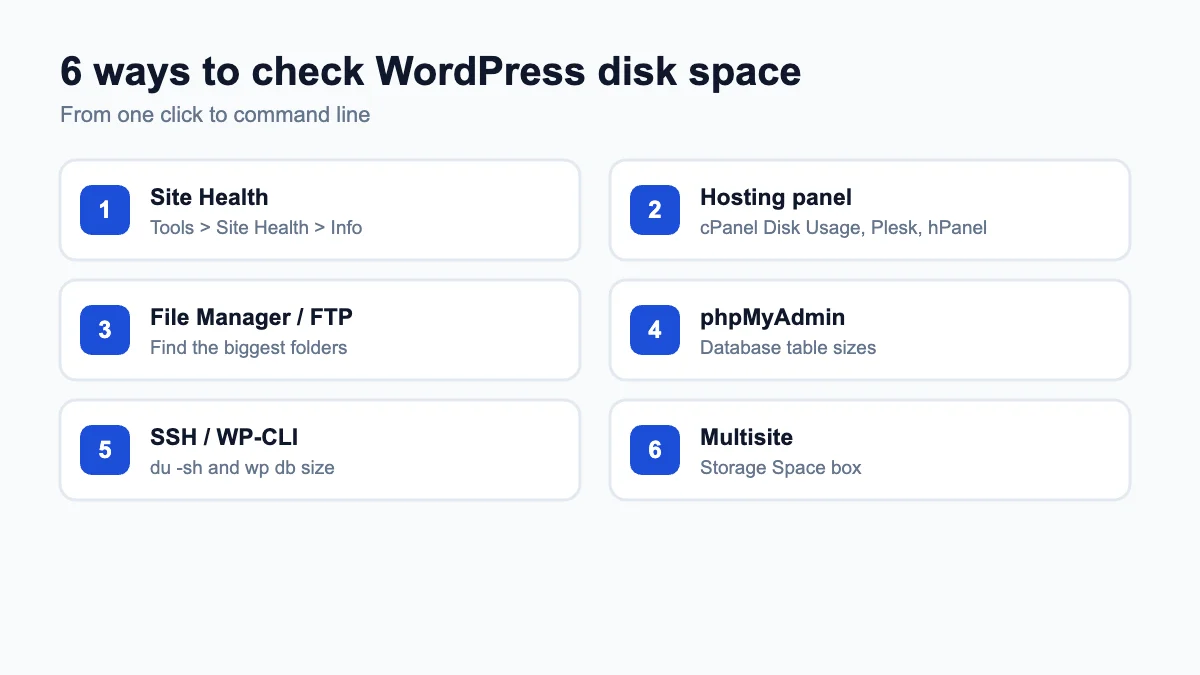
Why You Should Check Your WordPress Disk Space Usage
Every host gives you a fixed amount of disk space. When you run out, uploads fail, updates break and you may see a “disk quota exceeded” error. Checking your WordPress disk space usage tells you three things: how close you are to the limit, which folder is the problem, and whether cleaning up is enough or you need a bigger plan.
If you’re not sure what your limit actually is, read my guide on the WordPress storage limit first. It explains how hosting plans, WordPress.com and Multisite each set it.
Method 1: How to Check WordPress Storage With Site Health
This is the simplest answer to how to check disk space usage in WordPress. It’s built in (since version 5.2), so you don’t need a plugin. The official Site Health screen documentation covers every section if you want the details.
- Log in to your dashboard and go to Tools → Site Health.
- Click the Info tab at the top.
- Open the Directories and Sizes section.
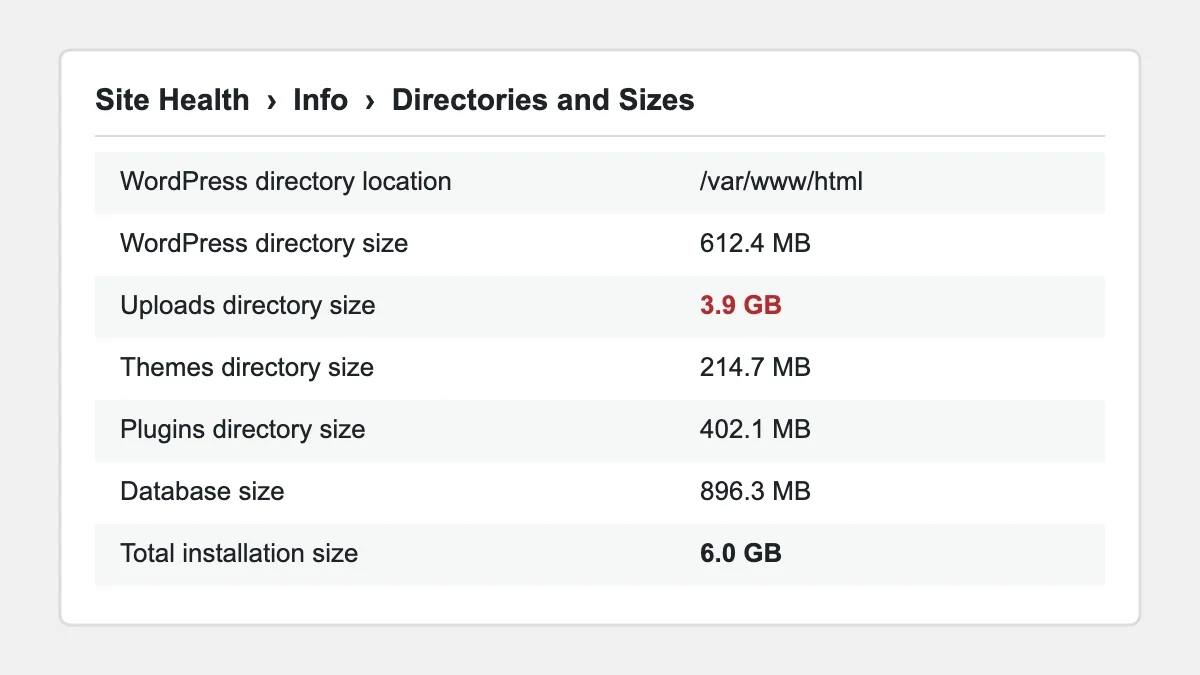
- Read the sizes for WordPress directory, Uploads, Themes, Plugins, Database and Total installation size.
Here’s what a typical result looks like on a small WooCommerce store. Uploads and backups are almost always at the top:
Limits of this method: Site Health only measures your WordPress folders and database. It won’t count backups stored outside WordPress, email accounts or other sites on the same hosting account. On large sites it can also get stuck on “Loading…” or time out. If that happens, use Method 2 or 5.
Method 2: Check Disk Usage in Your Hosting Control Panel
If you want to know how to check disk space usage in WordPress for your whole hosting account, not just the WordPress folders, use your hosting panel. It shows the number that actually matters: total usage against your plan’s quota.
- cPanel: open Disk Usage under Files. It lists every folder in your account, including mail, with sizes you can sort.
- Plesk: go to Statistics or the subscription overview to see disk space used.
- Hostinger hPanel and other custom panels: look for “Disk usage,” “Resources” or “Storage” on the hosting dashboard.
Also check the inode count if your panel shows it. Some hosts cap the number of files, and a site can hit that cap while still having free disk space.
Method 3: Use File Manager or FTP to Find Big Folders
If you know the total but not the cause, open File Manager (or connect with FileZilla) and look inside wp-content. These folders are the usual suspects:
| Folder | What’s inside | Safe to clean? |
|---|---|---|
wp-content/uploads | Media library and image copies | Carefully, with an optimizer |
wp-content/updraft or ai1wm-backups | Local backup archives | Yes, after moving them off-site |
wp-content/cache | Page cache files | Yes, clear it from the cache plugin |
wp-content/debug.log | PHP error log | Yes, but fix the errors filling it |
wp-content/plugins, themes | Installed plugins and themes | Delete inactive ones only |
In cPanel File Manager, select a folder and use “Calculate size” (or “Show folder sizes”) to see how big each one is. It’s a slower WordPress storage check, but it shows exactly which folder is the problem.
Method 4: Check Your WordPress Database Size
The database rarely uses the most space, but WooCommerce stores, sites with years of revisions and sites with chatty plugins can grow a big one. Open phpMyAdmin from your hosting panel, pick your database, and the size of every table appears in the list. You can also run this query in the SQL tab:
SELECT table_name,
  ROUND((data_length + index_length) / 1024 / 1024, 1) AS size_mb
FROM information_schema.tables
WHERE table_schema = DATABASE()
ORDER BY size_mb DESC
LIMIT 15;
If you’re wondering how to check WordPress storage used by the database alone, this is it. Big wp_options, wp_postmeta or log tables are usually the cause. The WP-Optimize plugin also shows table sizes and can clean revisions and transients for you.
Method 5: How to Check Disk Space Usage in WordPress With SSH and WP-CLI
This is the fastest and most accurate method, and the one I use on big sites. Connect over SSH, go to your WordPress folder and run:
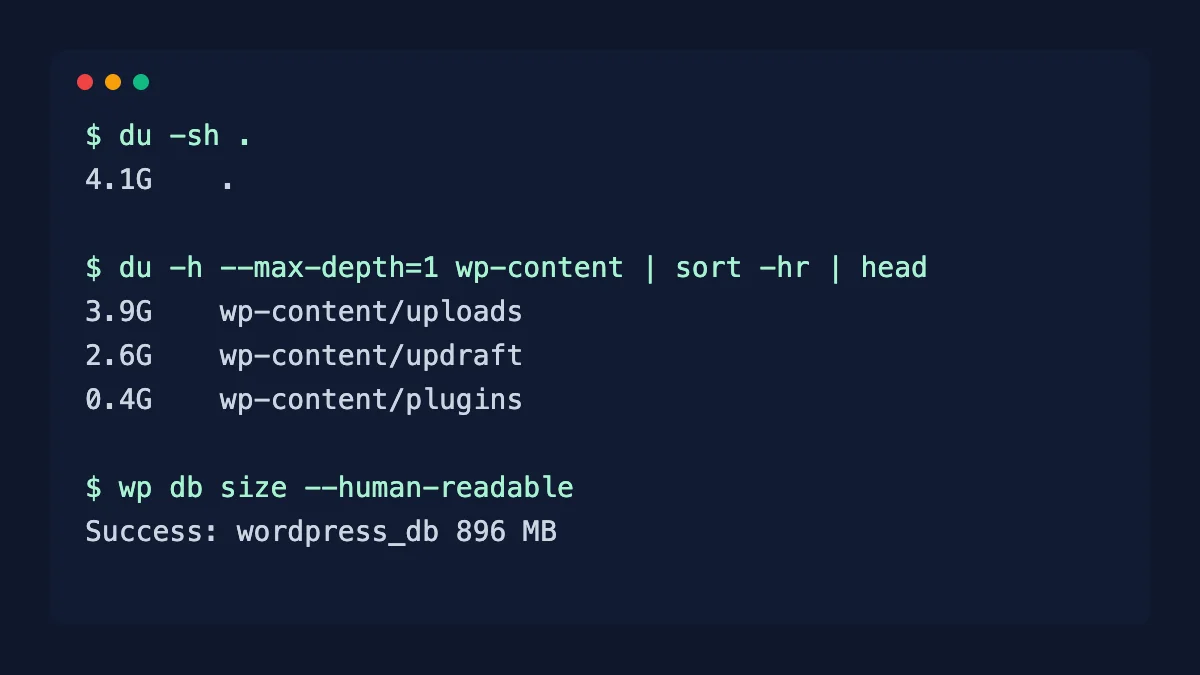
# Total size of the WordPress folder
du -sh .

# Biggest folders inside wp-content
du -h --max-depth=1 wp-content | sort -hr | head

# Database size, total and per table
wp db size --human-readable
wp db size --tables --human-readable

# Count files (useful for inode limits)
find . -type f | wc -l
If wp isn’t found, WP-CLI isn’t installed on your server. Many managed hosts include it; otherwise ask support or stick with the du commands, which work on almost any Linux server. You can read more about the wp db size command in the WP-CLI handbook.
Method 6: WordPress Storage Check on Multisite
On a Multisite network, each subsite can have its own storage quota. When “Site upload space” is turned on in Network Admin → Settings, every subsite’s dashboard shows a Storage Space box with how much is allowed and how much is used, so a network admin can see each subsite’s WordPress disk space usage at a glance. A super admin can raise the quota there, as explained in my WordPress storage limit guide.
Which Method Should You Use?
You don’t need all six. Pick based on what you’re trying to find out:
| Method | Best for | Skill level |
|---|---|---|
| Site Health | A quick look at WordPress folders and database | Beginner |
| Hosting panel | Total usage against your quota, including email | Beginner |
| File Manager / FTP | Finding one oversized folder or file | Beginner |
| phpMyAdmin | Finding big database tables | Intermediate |
| SSH / WP-CLI | Large sites and exact numbers | Advanced |
| Multisite Storage Space box | Per-site quotas on a network | Beginner |
For most site owners, the best routine for how to check disk space usage in WordPress is simple: Site Health first, hosting panel second. Move to SSH only when the first two don’t explain where the space went.
Common Mistakes When Checking WordPress Disk Space Usage
These are the slip-ups I see most when people do a WordPress storage check on their own:
- Trusting the Media Library count. It shows one item per upload, but each image has several resized copies on disk.
- Forgetting hidden folders. Backup plugins and migration tools often store archives in folders you never open.
- Deleting before backing up. Always take a fresh off-site backup before removing anything big.
- Ignoring email. On shared hosting, a few full mailboxes can use more space than the website itself.
How to Read the Results (and What to Do Next)
Once you know how to check disk space usage in WordPress, the numbers usually point to one of these situations:
- Uploads are huge: compress images, convert to WebP and stop extra image sizes. My guide to reduce WordPress website size walks through it.
- Backups are huge: move them to remote storage and keep only the last few.
- Database is huge: clean revisions, transients and old plugin tables.
- WordPress looks small but the account is full: check email accounts, other sites and old folders outside the WordPress directory.
- You’re already over the limit: follow my fix for disk quota exceeded in WordPress to get the site working again first.
I recommend running a quick WordPress storage check every two or three months. It takes two minutes in Site Health and saves you from finding out the hard way when uploads stop working.
Frequently Asked Questions
How do I check disk space usage in WordPress?
Why does Site Health show a different size than my hosting panel?
Why is Site Health stuck on Loading for directory sizes?
Is there a plugin to check WordPress disk space?
What takes up the most space in WordPress?
Still Stuck? Hire Me to Fix It
Found the problem but not sure what’s safe to delete? Or Site Health won’t even load? Send me your site details and I’ll check your disk usage, clean it up safely and set up off-site backups so it stays under control.
Still stuck? Hire me to fix itChat on WhatsApp