
WordPress Storage Limit: What It Is, What Fills It and How to Raise It
Quick answer: The WordPress software itself has no storage limit. Your real WordPress storage limit comes from where the site lives: your hosting plan’s disk quota on self-hosted WordPress, your plan on WordPress.com (1 GB on Free up to 50 GB on Business), or the “Site upload space” setting on a Multisite network (100 MB per site by default).
If uploads suddenly fail or your host emails you about disk space, you’ve probably hit your WordPress storage limit. The confusing part is that WordPress never shows one number for it. The limit lives in your hosting account, your WordPress.com plan, or your network settings, and each one is handled differently.
I’m Md Juwel Rana. I fix WordPress and WooCommerce sites for a living, and “my storage is full” is one of the most common messages I get. This guide explains where your limit comes from, what is eating the space, and the exact steps I use to free it up or raise it.
What Is the WordPress Storage Limit?
Your WordPress storage limit is the maximum disk space your site’s files and database can use. That includes media uploads, themes, plugins, backups, cache files and the MySQL database. WordPress.org, the free software you install yourself, doesn’t cap any of this. The cap comes from the server.
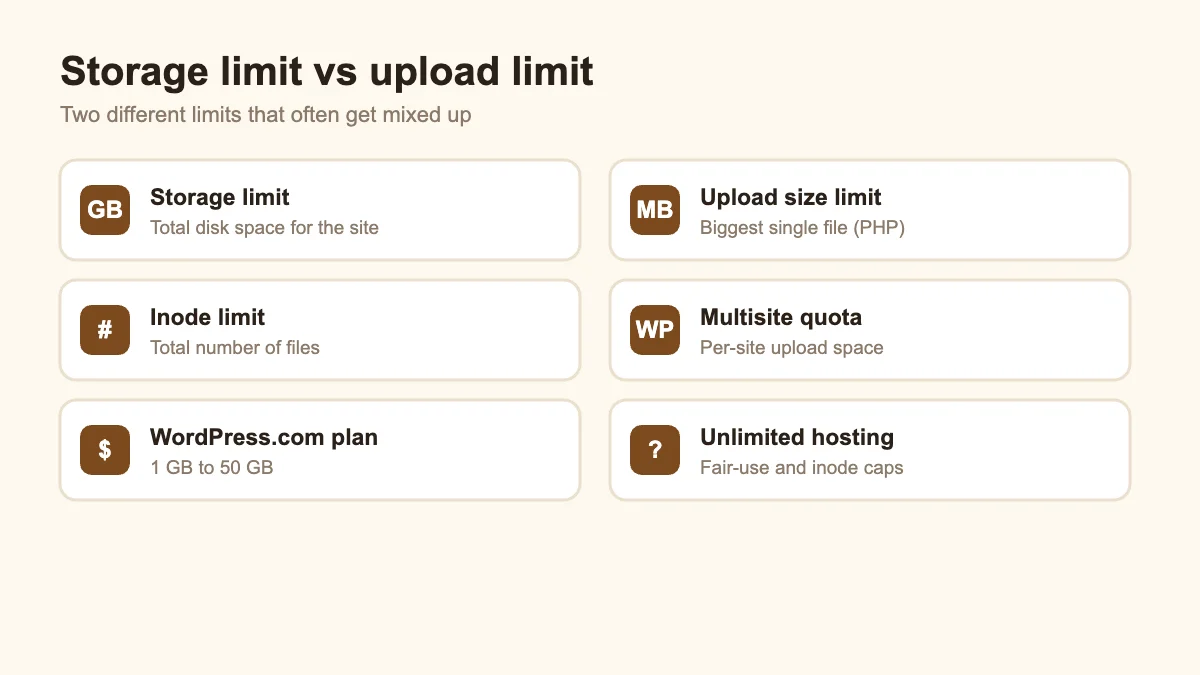
People often mix it up with the upload size limit, which is the biggest single file you can upload (the “Maximum upload file size: 2 MB” line on the Media screen). That one is set by PHP, not by your storage quota. You can have 40 GB free and still be blocked from uploading a 10 MB video.
- Storage limit (quota): total disk space for the whole site, set by your host or plan.
- Upload size limit: the biggest single file, set by PHP’s
upload_max_filesizeandpost_max_size. - Inode limit: the total number of files, which some shared hosts cap separately.
WordPress Storage Space Limit by Platform
Where your site is hosted decides your WordPress storage space limit. Here’s how it works on the three setups I see most:
| Setup | Where the limit comes from | Typical storage |
|---|---|---|
| Self-hosted WordPress (shared, VPS, managed) | Your hosting plan’s disk quota | Depends on plan; shared plans often have a few GB to ~100 GB, and “unlimited” plans usually have fair-use or inode caps |
| WordPress.com Free | WordPress.com plan | 1 GB |
| WordPress.com Personal | WordPress.com plan | 6 GB |
| WordPress.com Premium | WordPress.com plan | 13 GB |
| WordPress.com Business / Commerce | WordPress.com plan | 50 GB (add-ons available) |
| WordPress Multisite (each subsite) | Network Admin setting “Site upload space” | 100 MB per site by default, adjustable |
WordPress.com figures are from Automattic’s plan breakdown (updated October 2026). Plans change, so check your own plan page before you buy anything.
What Uses Up Your WordPress Storage Quota?
In most sites I clean up, the website content itself is small. The space goes to things nobody looks at:
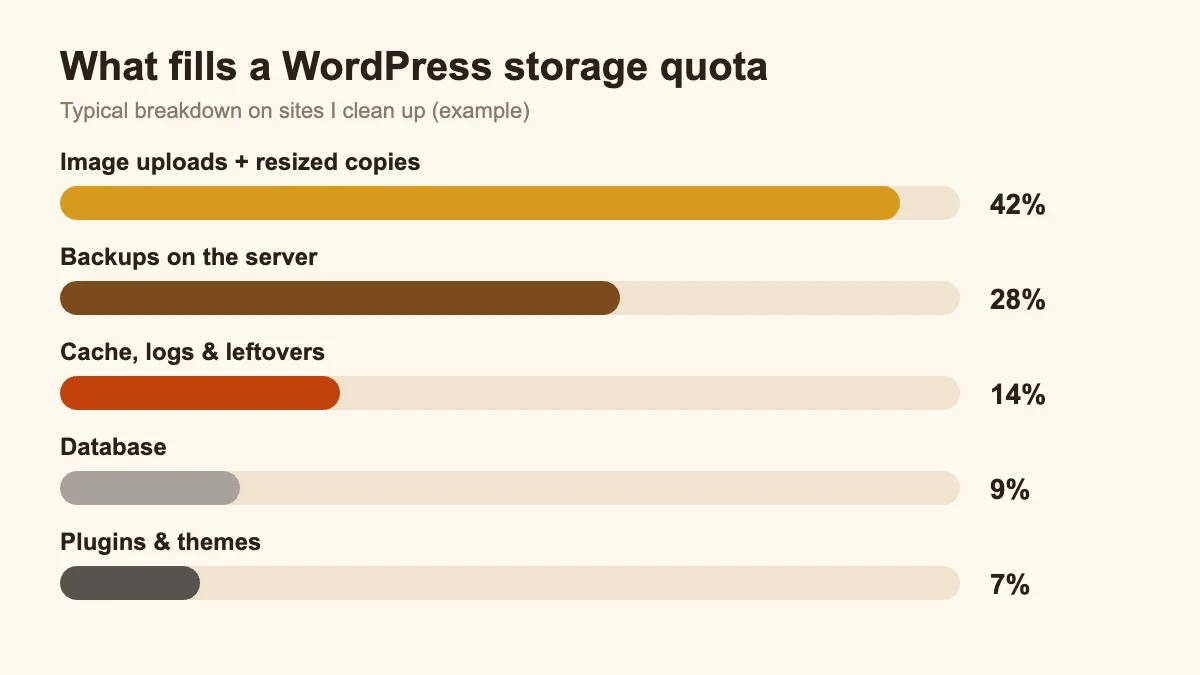
- Image copies. WordPress saves several resized versions of every image (thumbnail, medium, medium_large, large, 1536px, 2048px) and a “-scaled” copy for photos over 2560px. One upload can become six or seven files.
- Backups stored on the same server. Plugins like UpdraftPlus keep archives in
wp-content/updraft. Ten old backups can be bigger than the site. - Cache and logs. Page cache folders, debug.log and security plugin logs can quietly grow to gigabytes.
- Database bloat. Post revisions, expired transients, spam comments and old plugin tables.
- Email accounts. On many cPanel hosts, mailboxes share the same disk quota as your website.
- Leftovers. Inactive themes and plugins, staging copies and old migration zips.
What Happens When You Hit the WordPress Storage Limit?
Once the WordPress storage limit is reached, the server simply refuses to write new files. You’ll usually notice it as:
- Media uploads failing with “Unable to create directory” or an HTTP error
- Plugin, theme or core updates failing halfway, which can leave the site in maintenance mode
- A “Disk quota exceeded” error in the dashboard or logs
- WooCommerce orders or form entries not saving, because the database can’t grow
- Emails bouncing if your mailboxes share the same quota
If you’re already seeing that error, go straight to my step-by-step guide on fixing disk quota exceeded in WordPress.
How to Check How Much Storage Your Site Uses
Before deleting anything, find out what is actually big. The fastest built-in way is Tools → Site Health → Info → Directories and Sizes, which shows the size of your uploads, themes, plugins and database. Your hosting panel (cPanel Disk Usage, Plesk, hPanel) shows the full account usage, including email.
I wrote a separate walkthrough with every method, including SSH and WP-CLI commands: how to check disk space usage in WordPress.
7 Ways to Raise or Work Around Your WordPress Storage Limit
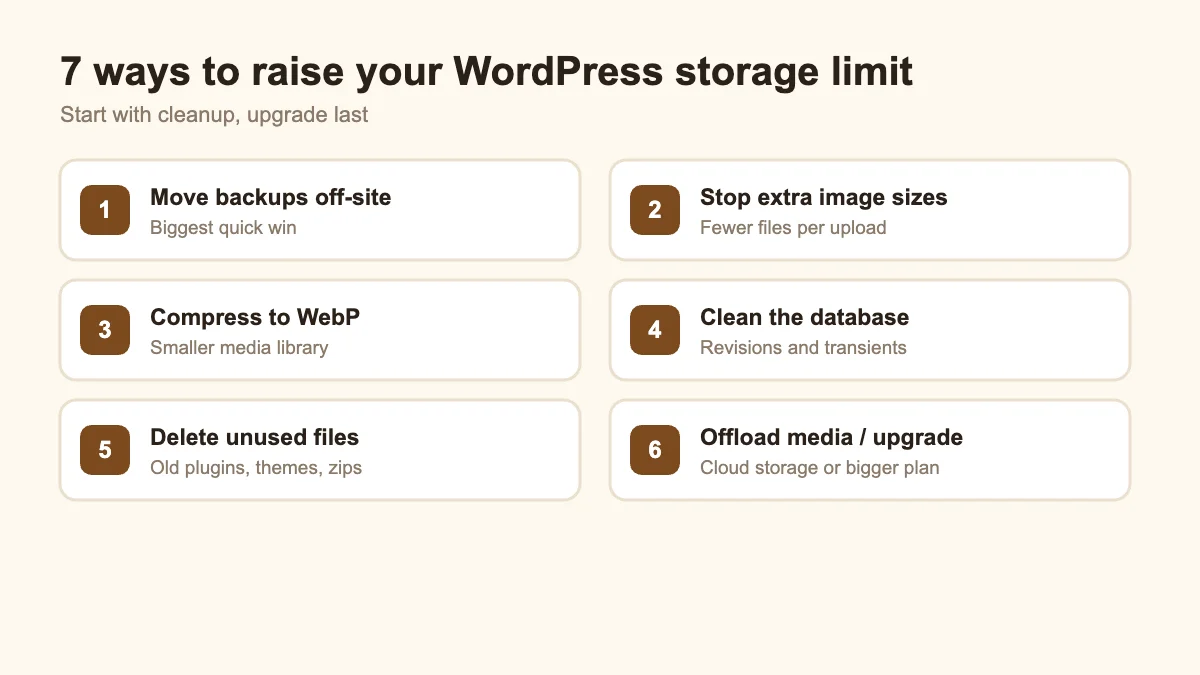
Start with cleanup, because it’s free and often recovers more space than you expect. Upgrade only if the site really needs it.
1. Move backups off the server
Open your backup plugin and set remote storage (Google Drive, Dropbox, Amazon S3, Backblaze B2). Then delete old local archives from wp-content/updraft or your host’s backup folder. On a lot of sites this alone frees several gigabytes.
2. Stop WordPress from creating image sizes you don’t use
Check which sizes your theme actually uses, then switch off the rest. Add this to a code snippets plugin or your child theme’s functions.php:
// Skip extra image sizes WordPress creates on upload
add_filter( 'intermediate_image_sizes_advanced', function( $sizes ) {
    unset( $sizes['1536x1536'], $sizes['2048x2048'] );
    return $sizes;
} );
// Keep big uploads at 1920px instead of 2560px
add_filter( 'big_image_size_threshold', function() { return 1920; } );
3. Compress and convert images to WebP
Use an image optimizer to compress existing images and convert them to WebP. Delete the originals only if the plugin keeps a safe copy elsewhere. A full guide is in my post on how to reduce WordPress website size.
4. Clean the database
Limit post revisions and clear old ones, expired transients and spam. Add this line to wp-config.php above “That’s all, stop editing”:
define( 'WP_POST_REVISIONS', 5 );5. Delete what you don’t use
Remove inactive plugins and themes (keep one default theme as a fallback), old staging folders, .zip files in the root and huge debug.log files in wp-content.
6. Offload media to cloud storage
For media-heavy sites, plugins can move uploads to Amazon S3, Cloudflare R2 or similar, so they no longer count against your hosting quota. This is the best long-term fix for stores with thousands of product images.
7. Raise the limit itself
If the site has genuinely outgrown the plan, upgrade your hosting or WordPress.com plan, or buy a storage add-on. On Multisite, a super admin can raise the per-site WordPress storage quota in Network Admin → Settings → Site upload space, or with WP-CLI:
# Set each subsite's upload space to 500 MB
wp site option update blog_upload_space 500
One more tip: if your host calls the plan “unlimited,” read the fair-use and inode rules. Hitting an inode cap gives the same symptoms as running out of storage, even when disk space looks fine.
Not a Storage Problem? Fix the Upload Size Limit Instead
If your hosting panel shows plenty of free space but one big file still won’t upload, you haven’t hit the WordPress storage limit at all. You’ve hit PHP’s upload size limit. Check it under Media → Add New, where WordPress shows “Maximum upload file size.”
Most hosts let you change it in the control panel (look for “PHP settings” or “MultiPHP INI Editor”). If yours doesn’t, add these lines to a .user.ini or php.ini file in your site root:
upload_max_filesize = 64M
post_max_size = 64M
memory_limit = 256M
Give it a few minutes, reload the Media screen and the new limit should show. If nothing changes, your host controls these values and you’ll need to ask their support to raise them.
How to Stay Under Your WordPress Storage Limit Long Term
Cleaning up once is great, but the space fills up again if nothing changes. These habits keep most of my clients well below their WordPress storage limit:
- Keep only the last 3 to 5 backups, and always store them off the server.
- Resize photos to around 1920px wide before uploading. Phone photos are often 4000px or more.
- Clear cache and old logs once a month, or let your cache plugin do it on a schedule.
- Check Site Health or your hosting panel every few months so you see the problem coming.
Frequently Asked Questions
Does WordPress have a storage limit?
How much storage does a WordPress site need?
What is the WordPress storage limit on WordPress.com?
How do I increase my WordPress storage size?
Is the storage limit the same as the maximum upload size?
Still Stuck? Hire Me to Fix It
If your site keeps hitting its WordPress storage limit and you don’t want to dig through folders and databases yourself, send me the details. I’ll find what’s eating your space, clean it up safely and set things up so it doesn’t come back.
Still stuck? Hire me to fix itChat on WhatsApp